

Let's configure you.
Six steps. About 10 minutes, from uploading them to your first photo.
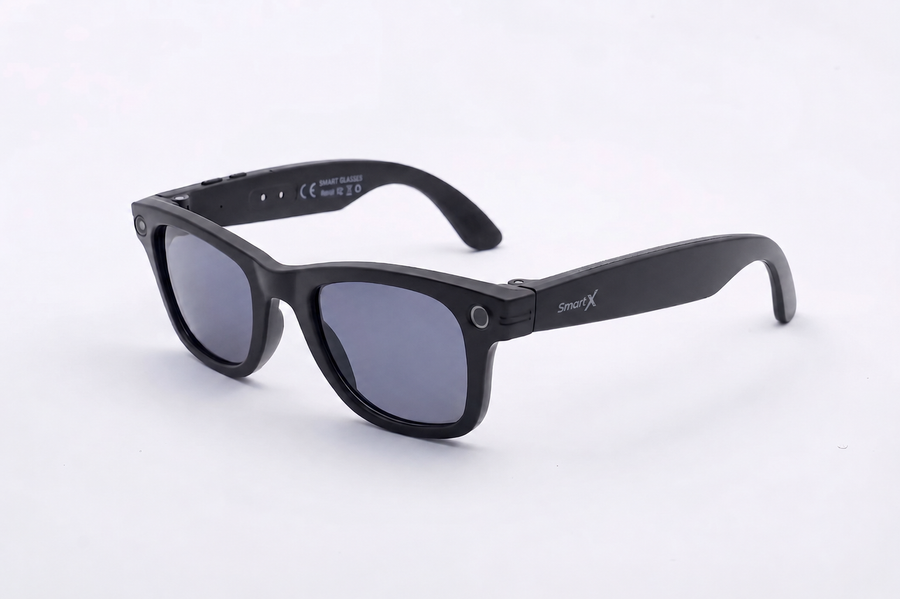
Everything you will need.
1x Smart sunglasses
1x Magnetic charging cable
2x Anti-slip nose pads
1x Microfiber cleaning bag
1x Quick start guide
Step-by-step setup guide
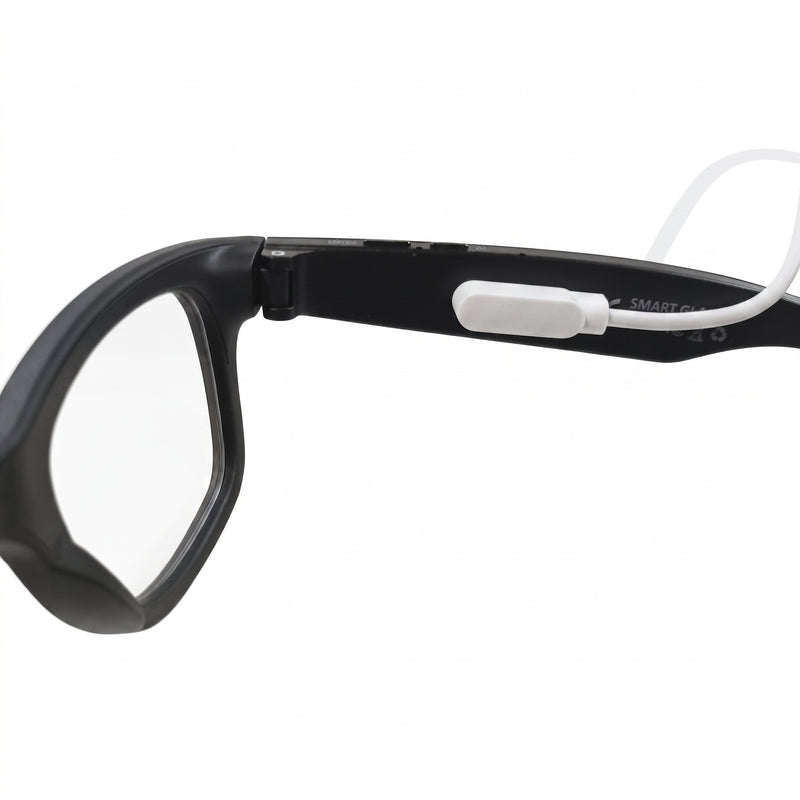
Load
⏱ approx. 60 minutesConnect the magnetic cable to the right rod and use a 5V / 1A USB adapter. Avoid fast chargers.
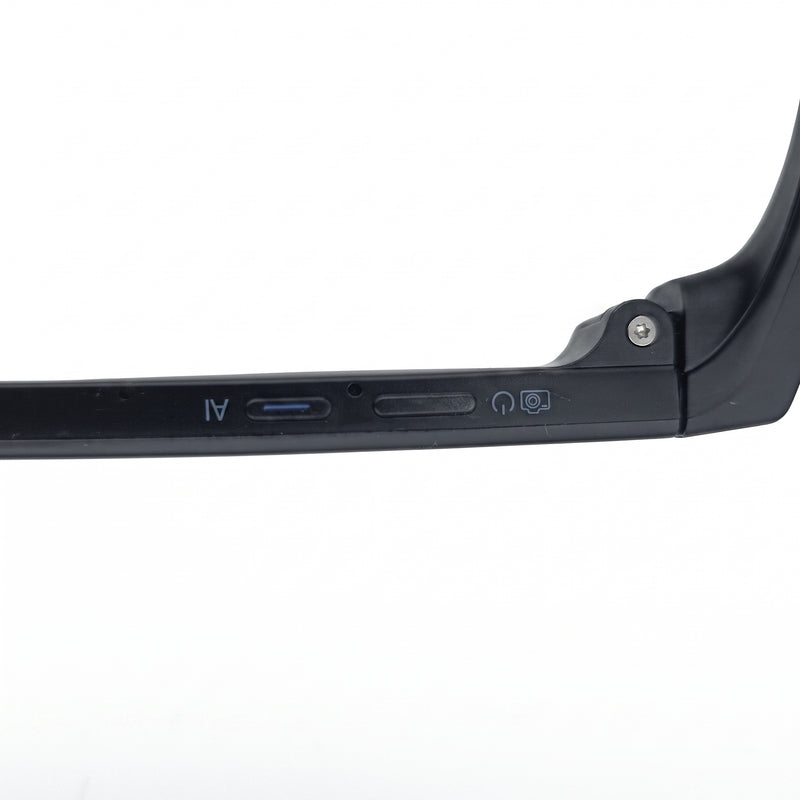
On
Press and hold the physical front button for 2 seconds. A voice prompt will confirm activation and a blinking blue LED will indicate phone search mode.
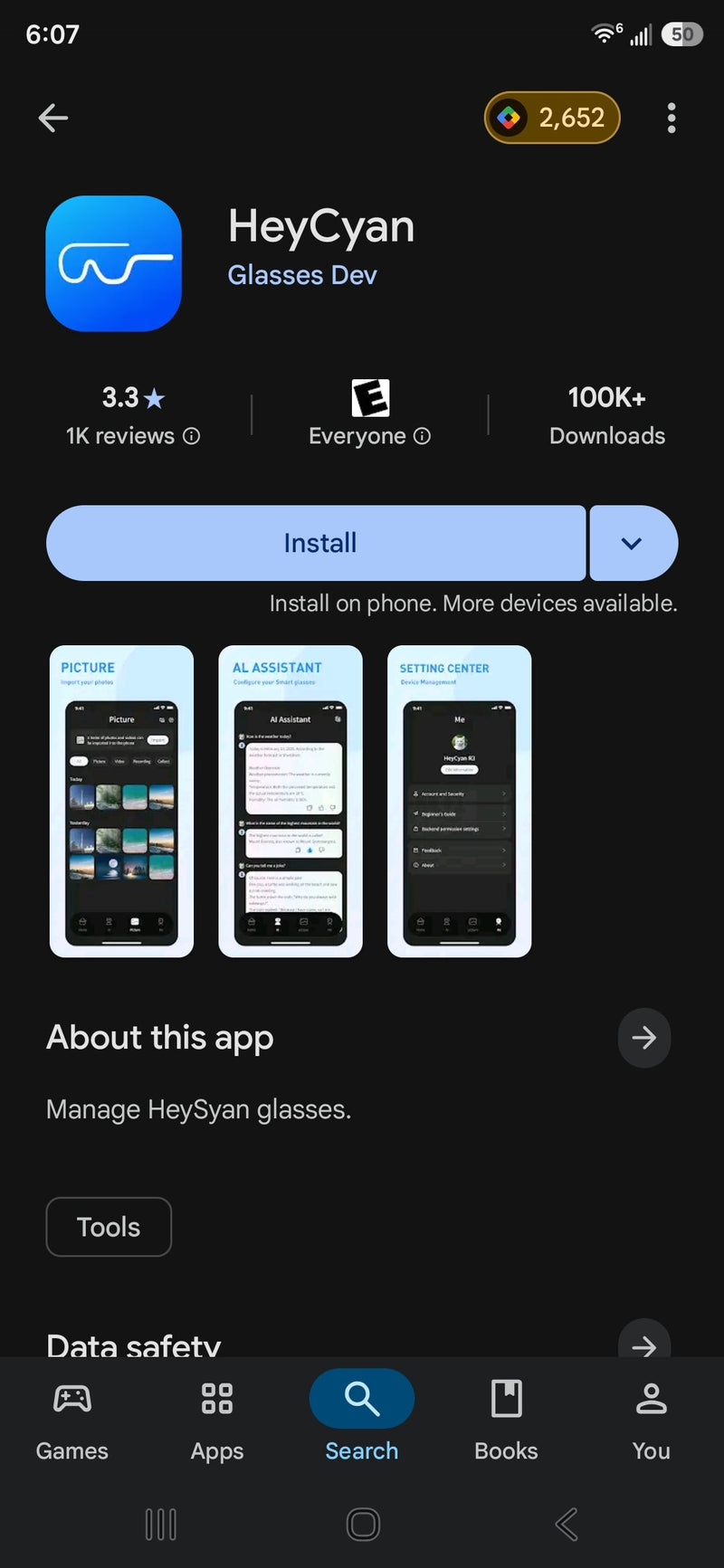
Download the app
Download the HeyCyan app. Verify that the publisher is correct: "Glasses Dev" (Android) or "Shenzhen Qingcheng Future Technology" (iOS).
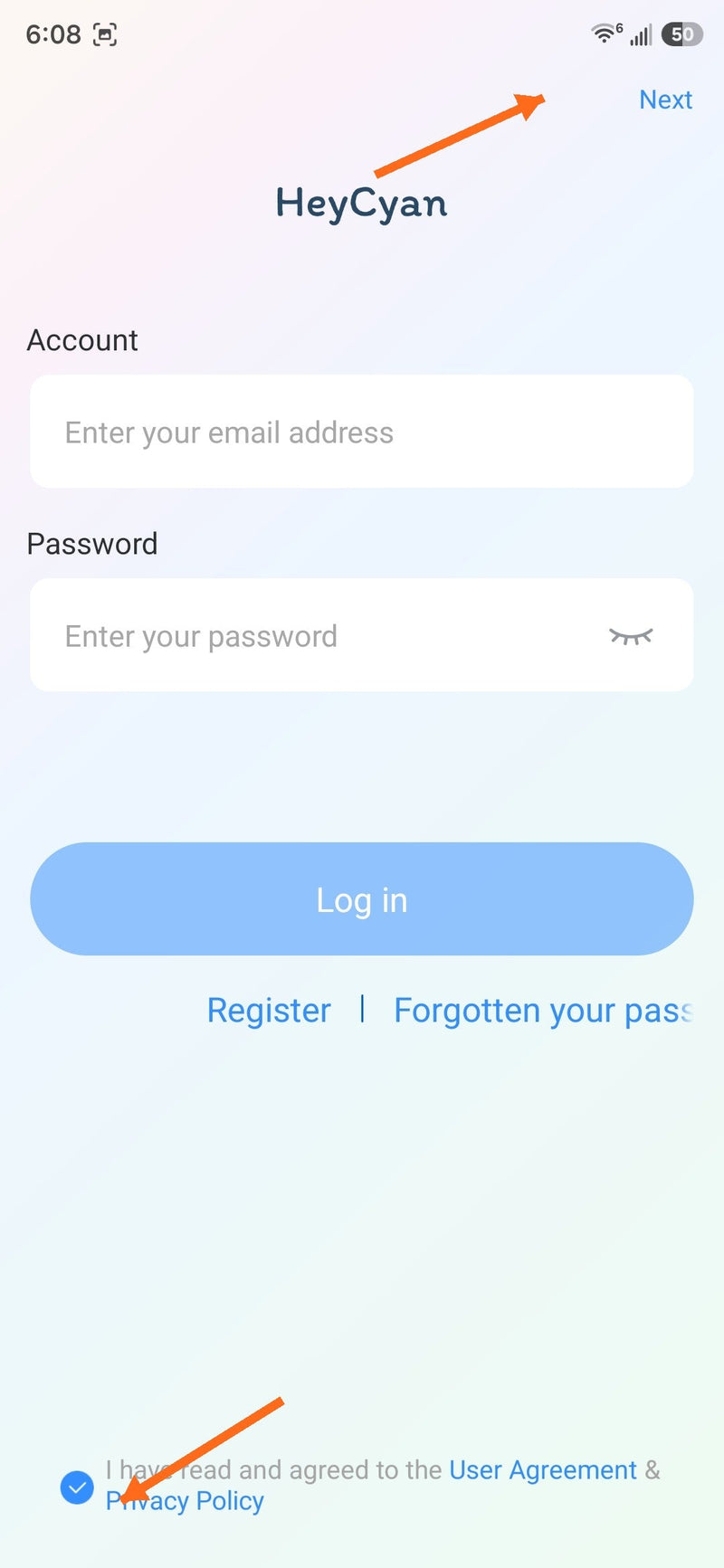
Open the app
Accept the terms and tap Next. Creating an account is not required.
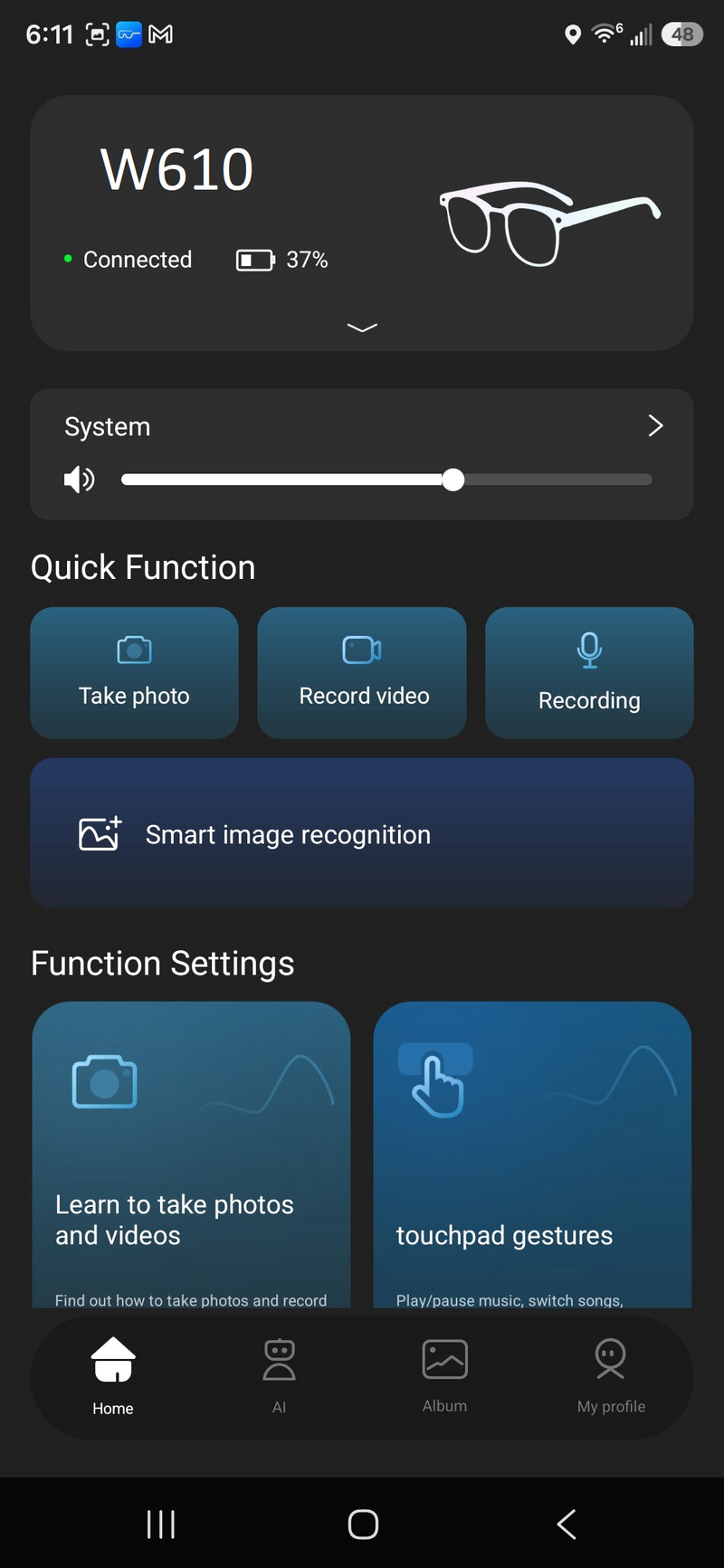
Bluetooth pairing
Search for "w610" in your phone's Bluetooth settings, pair the device, return to the HeyCyan app, grant location permissions, and confirm the LED is blue before connecting.
Note: Location Services must be enabled. Android requires this for Bluetooth detection; your location is not actually used.
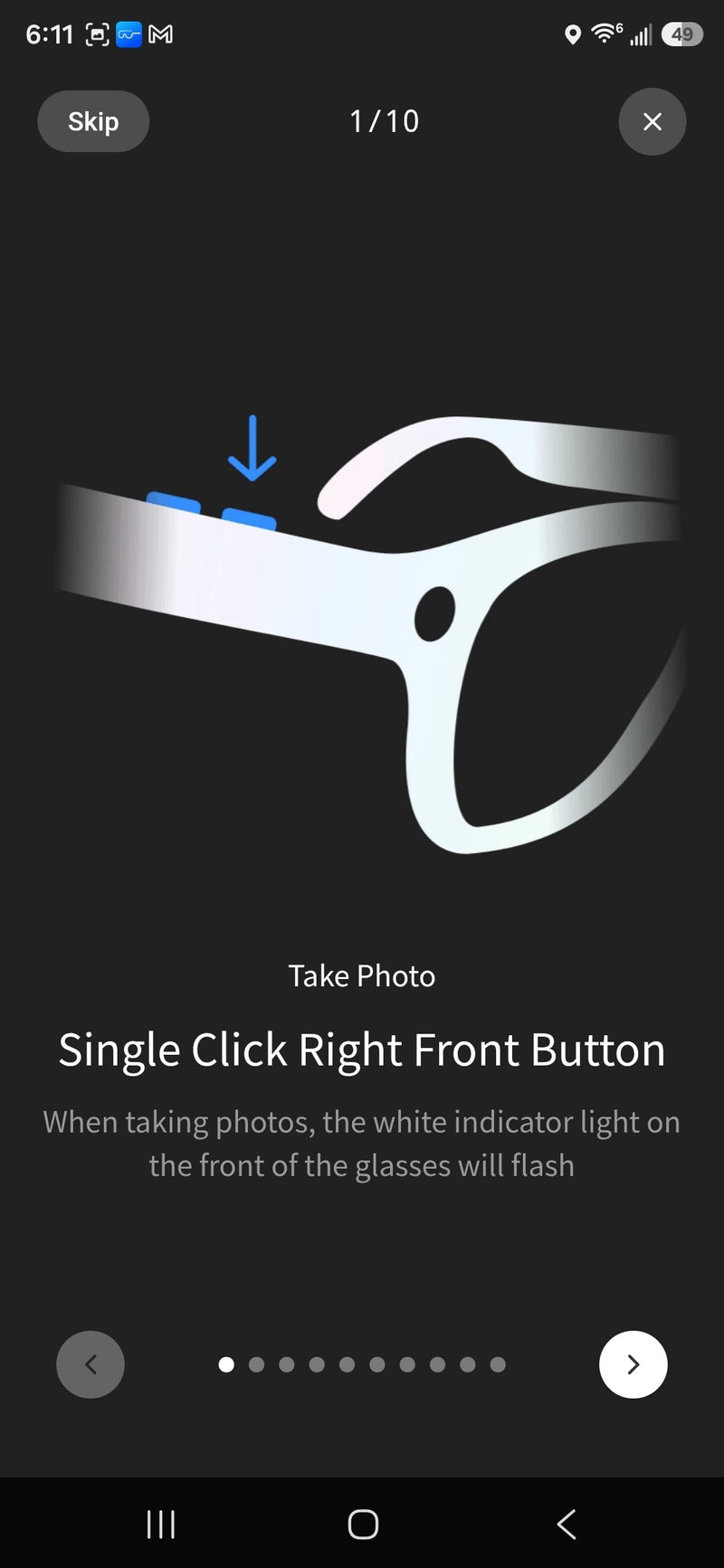
App tour
A 10-step interactive tour covers photo capture, video recording, sound recording, AI assistance, image recognition, and touchpad gestures.
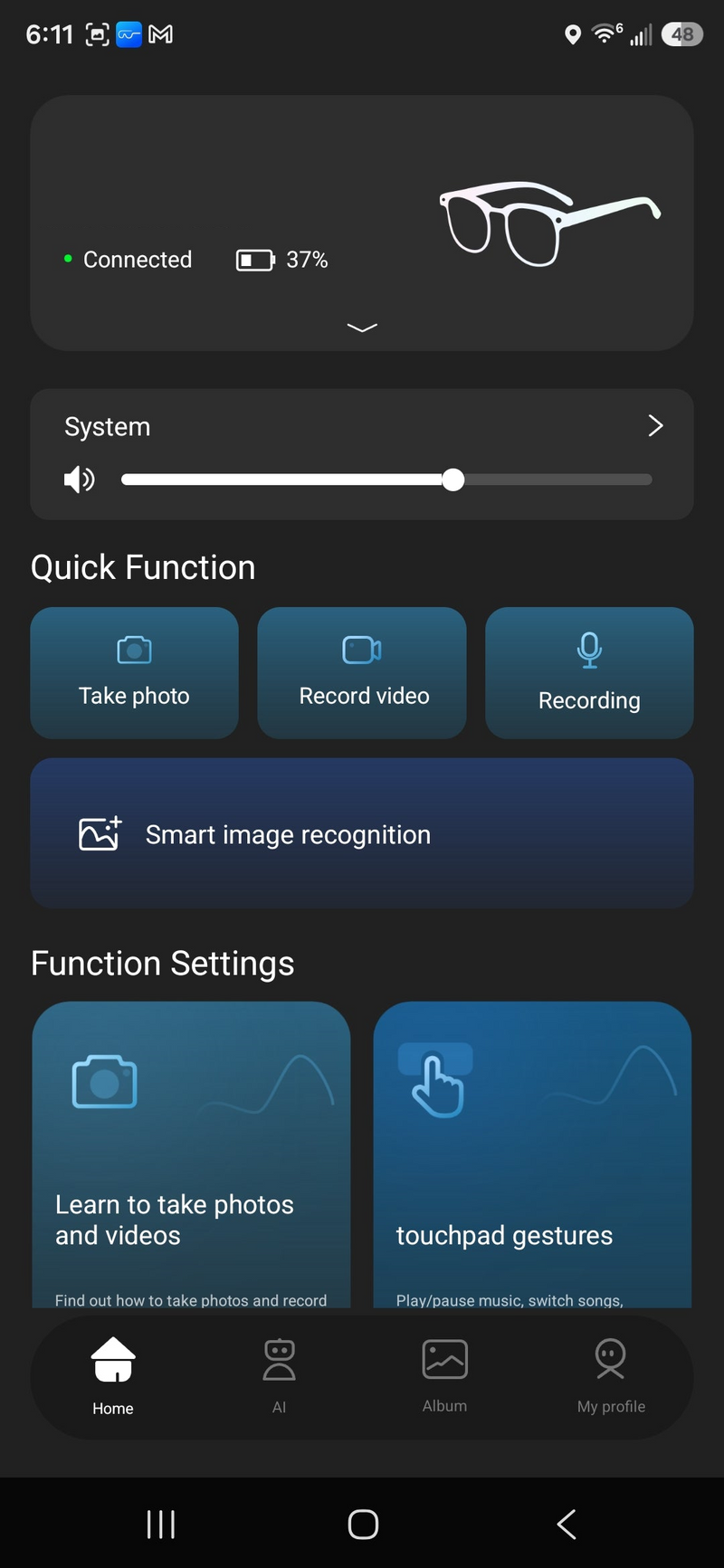
First photo
Three ways to capture: click the physical button on the front, voice command "Hey Cyan, take a picture," or tap Take Photo in the app. A white LED on the front will blink to confirm the capture.
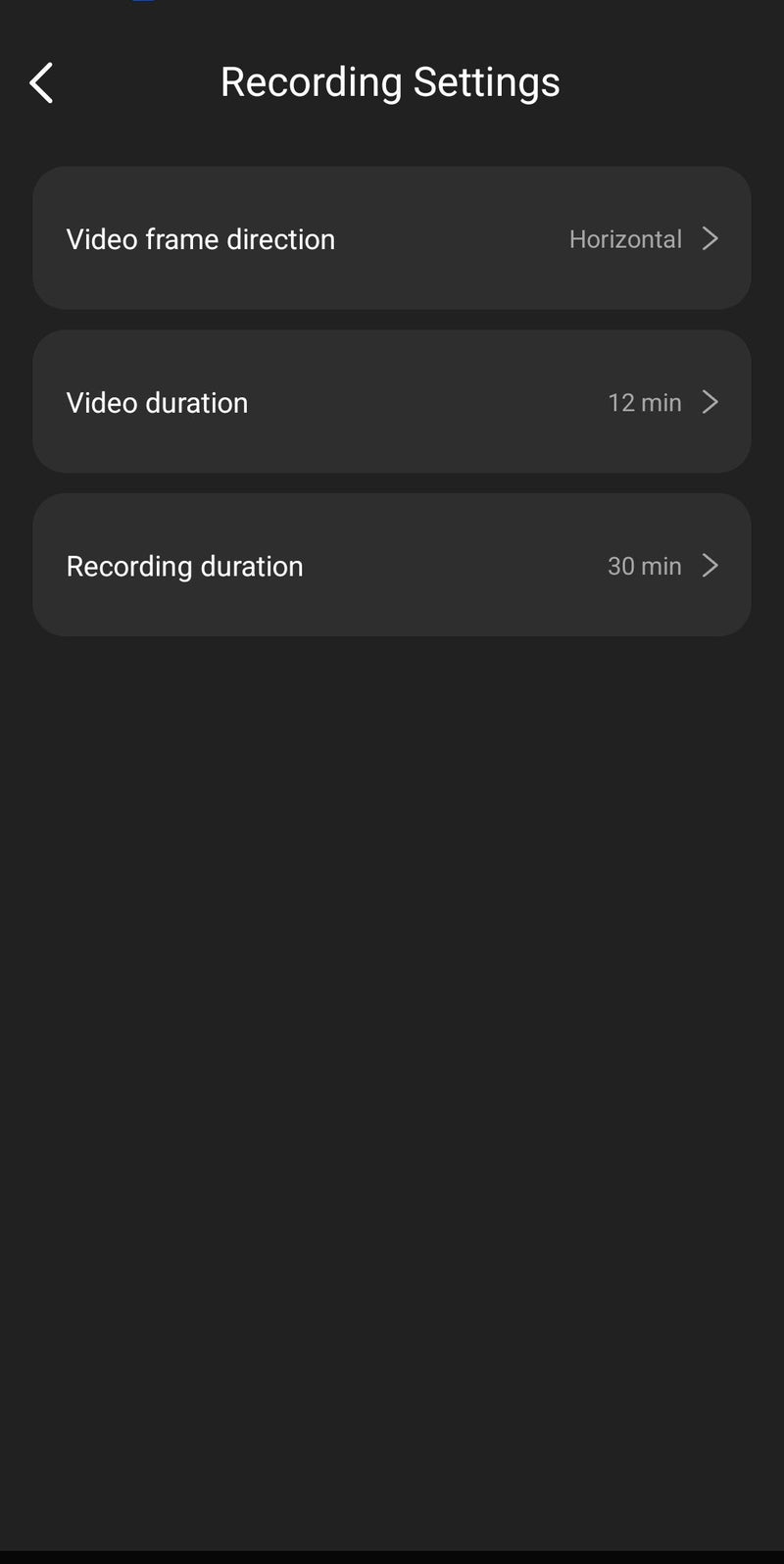
Optimize your experience
Enable wear detection and set the maximum video duration to 12 minutes from the "My Glasses" and "Recording Settings" menus in the HeyCyan app.
Quick reference for LEDs and controls
Flashing blue
On / looking for phone
Solid blue
Connected / loaded
Solid red
Loading
Flashing red
Turning off
Front physical button
Power On: hold 2 sec · Photo: click · Video: double click · Record sound: press and hold
Rear physical button
AI Assistant: single tap · Scene Recognition: double tap
Right touchpad
Volume: swipe · Play music: double tap · Skip track: triple tap
⚠️ important: do not update firmware without authorization
Do not update or modify the firmware of your smart glasses on your own.
An incorrect, incompatible, or interrupted update may cause communication errors between the glasses and your phone, affect certain functions, or even render the glasses unusable.
Firmware updates should be performed only when indicated or authorized by our technical service and following the instructions provided by our team.
⚠️ If you perform an unauthorized firmware update, any damage or failure caused directly by said update may be excluded from warranty coverage.
If the app displays an option to update the firmware, do not execute it before consulting with our technical service.
If your glasses experience connection, operational, or communication issues with the app, contact our support team first. We will guide you through the appropriate procedure.
Easily change lenses
Connect your glasses with Gemini
🕶️ Quick Guide: How to use your Smart Glasses with "Hey Google" for calls and messages.
To control your glasses with your voice, make calls and send messages without taking your phone out of your pocket, you just need to make sure your glasses are connected via Bluetooth to your Android phone.
Step 1: Set up the Assistant on your Phone
Before you begin, make sure your phone listens to your commands even with the screen locked:
-
Open the Google app on your phone and tap your profile picture (top right).
-
Go to Settings ➔ Google Assistant ➔ Hey Google & Voice Match.
-
Turn on the Hey Google option.
Step 2: How to Make Calls 📞
Thanks to the noise-reducing microphones and integrated speakers in the temples of your glasses, you can speak completely naturally.
-
The command: Speak firmly towards your glasses:
"Hey Google, call [Contact Name]"
-
If you have multiple numbers: The assistant will ask through the glasses: "Do you want to call their mobile or work?". Answer aloud: "Mobile".
-
To hang up: You can use the touch control on the temple of your glasses (a tap or press and hold, depending on your settings) or simply say: "Hey Google, hang up".
Step 3: How to Send WhatsApp or SMS Messages 💬
Forget about typing on the keyboard while walking or driving.
-
The command for WhatsApp: Say towards your glasses:
"Hey Google, send a WhatsApp message to [Contact Name]"
-
Dictate the message: The assistant will reply: "What's the message?". Dictate your text continuously. (Example: "I'm on my way, I'll be there in 10 minutes").
-
Confirmation: The assistant will read the message back to you to make sure everything is correct and will ask: "Do you want to send it or change it?".
-
The closing: Respond with a simple: "Send". And you're done!
💡 Pro Tips for daily use:
-
To hear your notifications: If you're walking and receive a message, you can say: "Hey Google, read my new messages" and you'll hear them directly through the directional speakers of your glasses without anyone else hearing them.
-
Speak normally: You don't need to shout at the glasses. The smart microphones are designed to pick up your voice, filtering out wind or street noise.
🍏 Quick Guide: How to use your Smart Glasses with Siri (iPhone) for calls and messages.
To control your glasses with your voice using your iPhone, just make sure they are paired via Bluetooth in your device's settings section.
Step 1: Set up Siri on your iPhone
First, make sure your iPhone responds to voice commands even if it's locked or in your pocket:
-
Go to Settings on your iPhone.
-
Scroll down and tap Siri & Search.
-
Enable the option Listen for "Hey Siri" (or just "Siri" if you have the latest update).
-
Make sure to also enable Allow Siri When Locked so it works without having to unlock the phone.
Step 2: How to Make Calls with Siri 📞
The integrated audio and microphones of your glasses will handle the entire conversation privately.
-
The command: Speak clearly towards your glasses:
"Hey Siri, call [Contact Name]"
-
If you have duplicate contacts or multiple numbers: Siri will tell you through the glasses: "Do you want to call [Name] on their mobile or at home?". Just reply: "Mobile".
-
To hang up: You can tap the physical/touch sensor on the temple of your glasses or simply say: "Hey Siri, hang up".
Step 3: How to Send WhatsApp or iMessage Messages 💬
Perfect for quick replies while driving or walking without touching the screen.
-
The command for WhatsApp: Say towards your glasses:
"Hey Siri, send a WhatsApp message to [Contact Name]"
-
Dictate the content: Siri will reply: "What do you want to say?". Dictate your message continuously (Example: "I've left the office, I'm on my way").
-
Confirmation and sending: Siri will read back what it understood and ask: "Shall I send it?". Just reply: "Yes", or "Send", and the message will go out immediately.
💡 Exclusive Pro Tip for iPhone (Announce Messages):
If you want Siri to automatically read incoming WhatsApp messages to you without you having to ask:
-
Go to Settings ➔ Siri & Search ➔ Announce Messages.
-
Enable the option. This way, when you're out using your glasses, your iPhone will read the incoming message directly to your ear and let you reply instantly by just speaking.
🔋 Tips for caring for the battery of SMARTX™ smart glasses
1. Keep the battery between 20% and 80%
To prolong battery life, try charging the glasses when they are around 20–30% and unplugging them near 80–90%.
2. Avoid the battery reaching 0%
Letting the glasses fully discharge frequently reduces battery life. It is better to do partial charges.
3. Always use the original charger
Using the original cable or charging case ensures the correct voltage and avoids damage from unstable charging.
4. Avoid heat
Do not leave the glasses inside a hot car, in direct sunlight, or near heat sources. High temperatures accelerate battery wear.
5. Do not leave them charging overnight
Although devices have protection, leaving them connected for many hours after being at 100% stresses the battery.
6. Store the glasses correctly if not in use
If you are not going to use them for weeks, store them with 40–60% battery in a cool, dry place.
7. Keep the charging port clean
Periodically check the charging pins or port to avoid dust or dirt.
8. Prefer short recordings
It is preferable to make 4 recordings of 3 minutes than a single recording of 12 minutes. Recordings longer than 9 minutes generate heat in the lenses, this is normal.
9. File import to phone
To extend battery life, disable automatic import to your phone and import files when the glasses are connected to USB charging.
10. Recommended charger
The recommended charger is 5V 1A. Do not use higher power chargers.